
You can open Windows Terminal app on your Windows 10 device in more ways than one. In this post, I’ll show you how to create task in Task Scheduler to open or start the Windows Terminal app.
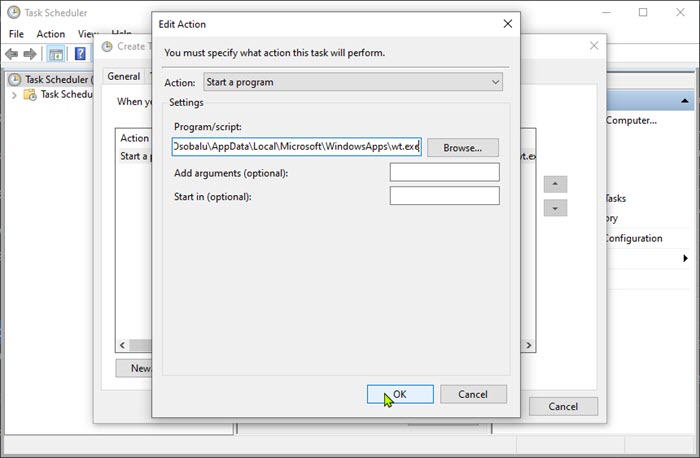
Create task in Task Scheduler to open Windows Terminal app
To create task in Task Scheduler to open Terminal app in Windows 10, do the following:
- Press the Windows + R keys to invoke the Run dialog.
- In the Run dialog box, type taskschd.msc and hit Enter to open Task Scheduler.
- In Task Scheduler window, click Action on the Menu bar.
- Click Create Task.
- In the Create Task window, on the General tab, assign a name for the Task (eg; OpenTerminal) and check the Run with highest privileges option.
- Next, click the Actions tab.
- Click New.
- Select Start a program from the Action: drop-down menu.
- Browse or input the full path to
wt.exein the Program/script field. The path should be similar as shown below. Substitute the <username> placeholder with your actual user profile/account name.
C:\Users\<username>\AppData\Local\Microsoft\WindowsApps\wt.exe
Note: You may need to show hidden files. And you can browse to the location by opening Run dialog and then copy and paste the environment variable below into the box and hit Enter.
%LocalAppData%\Microsoft\WindowsApps\
- Click OK.
- Click Conditions tab.
- Uncheck the Start the task only if the computer is on AC power option.
- Click Settings tab and make sure Allow task to be run on demand is checked and uncheck the Stop the task if it runs longer than: option.
- Click OK to exit the Create Task window.
- Exit Task Scheduler.
Finally, to launch an elevated Windows Terminal session do the following:
- Press Windows key + X to open Power User Menu.
- Tap I on the keyboard to launch PowerShell.
- In the PowerShell console, type in or copy and paste the command below and hit Enter. Where TASK_NAME is the name you assigned to the task previously.
schtasks /run /TN "TASK_NAME"
Now, anytime you wish to open Windows Terminal, you can just run the command above in elevated PowerShell and you don’t need to create the task all over again.
That’s it!
 WindowsHelper