
The App history tab in Task Manager collects and reports usage statistics for the apps and programs running on your computer or device over the last month. In this post, we will walk you through the steps you can take to delete Windows Store apps usage history in Windows 10.
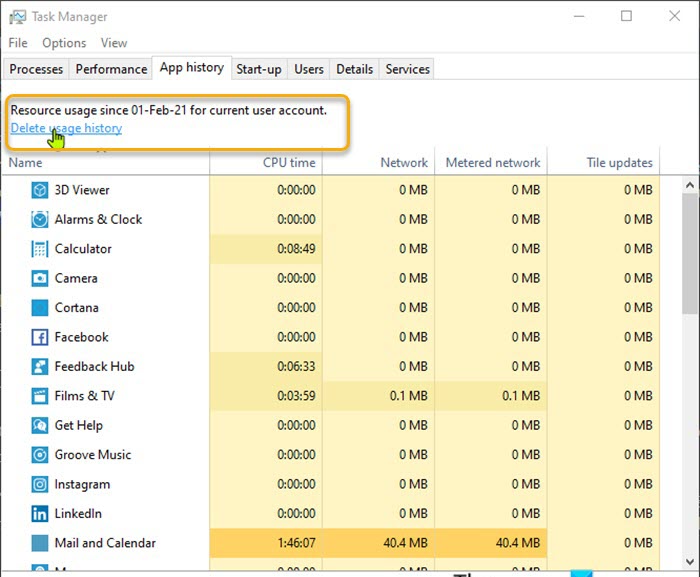
If you are using a limited data plan, this feature is extremely useful as you can decide which app consumes more or less data – so you can remove the more consuming data apps..
Delete Windows Store apps usage history
Deleting Windows Store apps Usage History will clear all the resource usage data as all the factors will reset and start from the cleared history date.
The App history tab is organized in columns. You can click or tap on a column’s header and drag it left or right to make it easier to view the information you are interested in. The App history tab contains the following five columns:
- Name – displays the name of the app.
- CPU Time – shows the total amount of processor time that an app has taken up.
- Network – displays the total network usage of an app in MB.
- Metered Network – displays the total network usage on a network marked as metered.
- Tile Updates – shows the amount of network usage for updating the chosen app’s live tile.
By default, the apps in the list are sorted alphabetically. Clicking on any of the column headers sorts the data displayed based on the values displayed in that column.
To delete Windows Store apps usage history in Windows 10, do the following:
- Press Ctrl + Shift + Esc keys to open Task Manager. If Task Manager opens in compact mode, click or tap on More details.
- In the Task Manger Window, click on App history tab.
- Now, click the Delete usage history link.
That’s it!
Related post: How to view and clear Activity History on Windows 10 PC.
 WindowsHelper