
Whenever you’re setting up Windows 10 PC for the first time, install a major upgrade or create a new user, the first time you sign in, you are greeted with the first sign-in animated welcome message. In this post, we will show you how to disable the Windows 10 first sign-in welcome message.
Based on a closed test on select Windows 10 users, the average time Windows took to reach the opt-in prompt for services was 33.5 seconds but signing in without the Windows 10 setup first sign-in welcome message yielded an average setup time of 23.5 seconds. That’s a whole 10 seconds faster without the animated welcome message.
The first sign-in animation is a series of messages that display on the screen when signing in after a major update, version change, for new user accounts or during setup towards the end of Out-Of-Box Experience (OOBE).
The set of messages include:
Hi,
We’re setting things up for you,
We’ve got some updates for your PC,
This might take several minutes.
How to disable Windows 10 setup first sign-in welcome message
There are two possible ways to disable the Windows 10 setup first sign-in welcome message:
1. via Registry Editor
2. via Local Group Policy Editor
Let’s take a look at both procedure.
1] Registry Editor
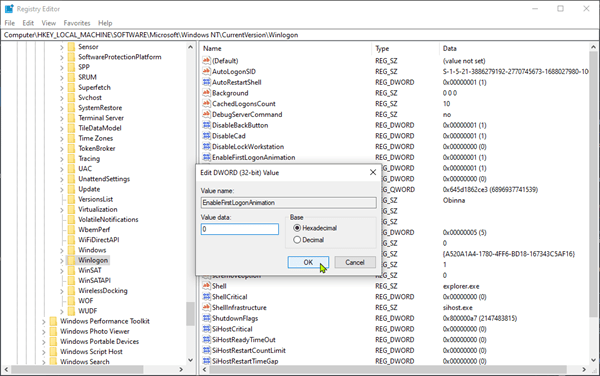
To disable the Windows 10 setup first sign-in welcome message using Registry Editor (regedit), do the following;
First, you need to backup the registry or create a system restore point, as a precautionary measure in case the procedure goes wrong.
- Launch Registry Editor.
- Navigate to the following key in the left sidebar:
HKEY_LOCAL_MACHINE\SOFTWARE\Microsoft\Windows NT\CurrentVersion\Winlogon
If you don’t see a Winlogon key (folder) below the CurrentVersion folder, right-click the CurrentVersion folder and select New > Key. Name it Winlogon.
- Right-click the Winlogon key (folder) in the left pane and select New > DWORD (32-bit) Value.
- Name the value EnableFirstLogonAnimation.
- Double-click the entry to edit it’s properties and set the Value data to 0 (zero).
- Click OK.
You can now exit the registry editor. You don’t have to sign out or restart your computer for the changes to take effect, but you will need to have a new user account waiting to sign in.
To undo your change and to continue to see the first sign-in animation, you can return here and set the EnableFirstLogonAnimation value data back to 1.
2] Local Group Policy Editor
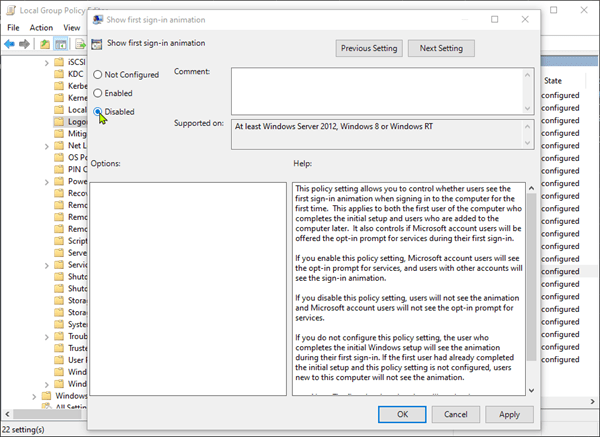
To disable the Windows 10 setup first sign-in welcome message using Local Group Policy Editor (gpedit.msc), do the following;
- Launch the Local Group Policy Editor.
- Navigate to the following setting:
Computer Configuration > Administrative Templates > System > Logon
- Locate the Show First Sign-In Animation setting in the right pane and double-click on it to edit it’s properties.
- Set the Show First Sign-In Animation option to Disabled.
- Click OK to save your changes.
You can now exit the GP editor. All changes have been saved and will take effect immediately. There is no need to restart your PC before the animation is disabled.
To re-enable the animation, return here, and set the Show First Sign-In Animation option to Not Configured or Enabled.
That’s it!
 WindowsHelper